Creating your first custom workout
A Custom Workout is your own list of exercises, in the order you will train them, with the reps and weight you are aiming for.
5 steps · 3 min read
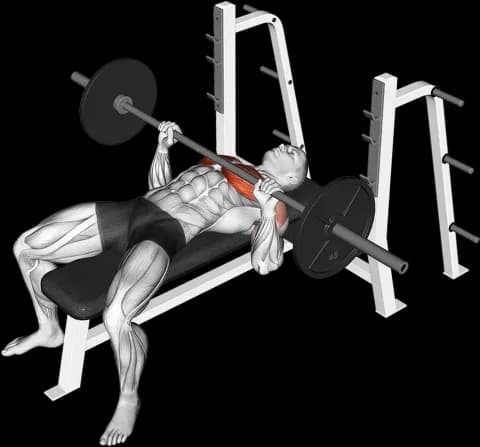
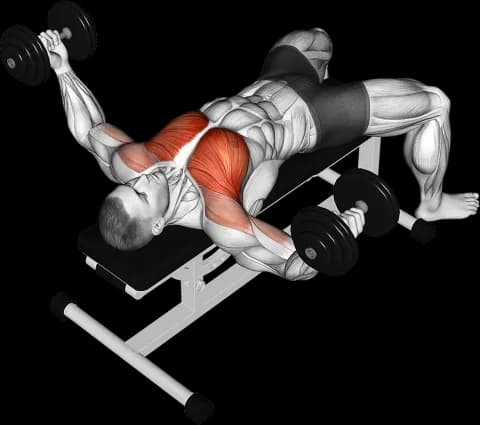
Step 1. Open the builder
The orange button above the tab bar opens the action menu from anywhere in the app. Tap Start Custom Workout.
The builder opens empty, with two ways on: Add exercise to build the workout first, or Quick start to begin the session now and log as you go.
Step 2. Name it, then add an exercise
Tap the name at the top and give the workout one, up to 40 characters. That is what it is called everywhere afterwards.
Add exercise opens the picker over the builder. Search by name, or work down from Push, Pull and Legs through muscle, equipment, location and level. Tap a card and the exercise lands in the workout. There are 1400+ of them.
If you have trained that exercise before, the card offers your last session back: Found your last session. Apply it? Accept it and every set arrives filled in.
Naming needs at least a Lite membership. On the free plan you build and start without one.
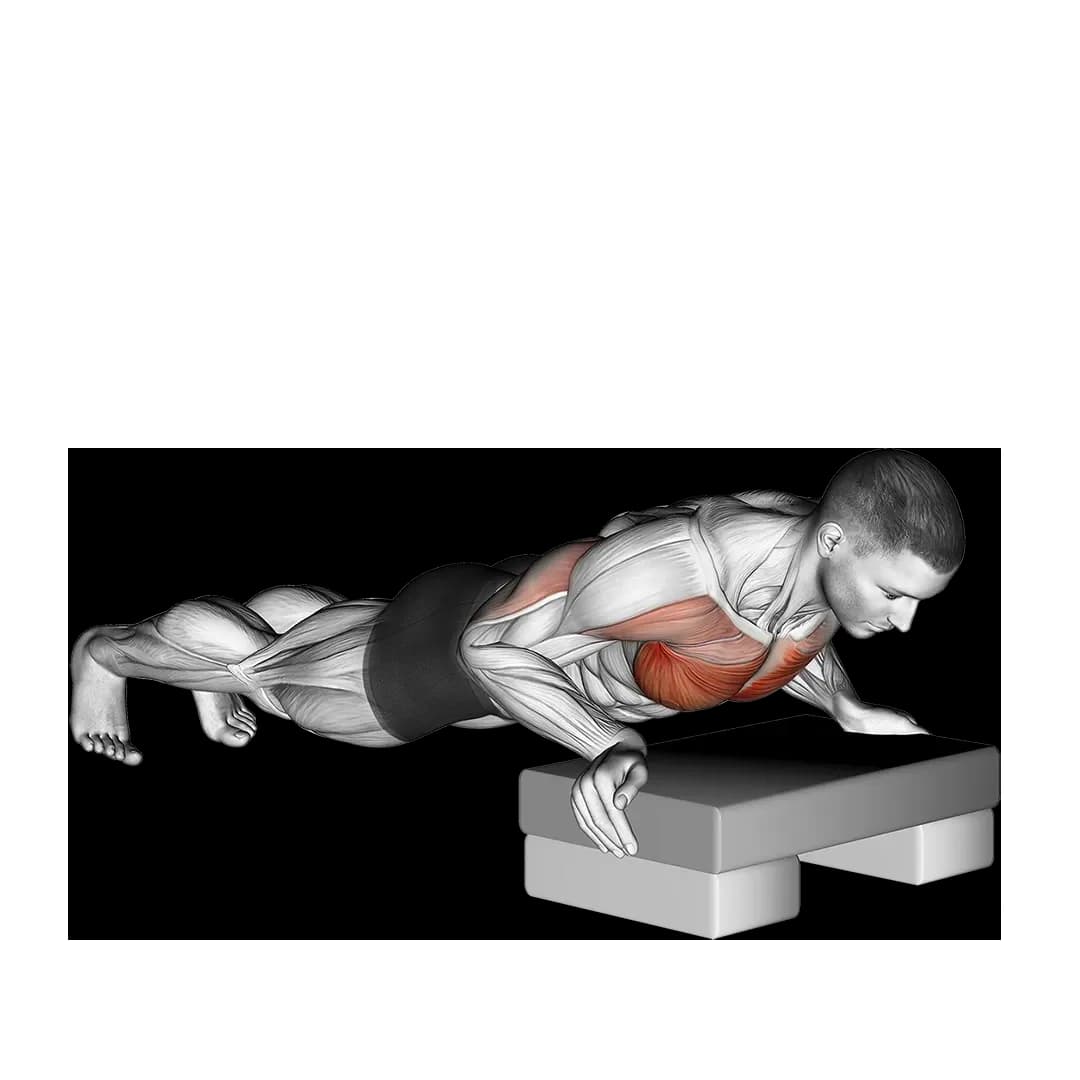
Step 3. Dial in the sets
Every exercise arrives with one set. Tap the reps cell or the weight cell and the ruler slides up. Drag the number you want under the pointer, and switch between reps and weight with the chips above it.
Add set copies the last row, so each new set only needs what changed.
- STEP sets the ruler's increment, 0.25 kg to 5 kg
- The letter at the end of a row tags the set type
- Bolt can write the targets from your training history
Step 4. Set the rest
The line under each exercise name carries two durations: the rest between sets, then the rest after the exercise once another one follows it. Tap it and both open on the same ruler.
The first duration you set becomes the workout's default and cascades to every exercise in it. After that each edit stays on the exercise you opened, unless you hand it back with Apply to all.
Step 5. Start it, or save it for later
Start workout at the bottom takes you into the session as it is. It gets logged whether or not you ever saved it.
The calendar button keeps it instead. Pick a day and the workout waits for you there, or turn on Save as template and it goes to your workout library to run again. The sheet's button changes to match.
Scheduling and saving as a template both need at least Lite. Building and starting never do.